When a resident says they cannot sign in, it usually comes down to the wrong email, an unfinished invitation, or a password issue. This checklist is for property managers and staff working in the web admin. Start by asking the resident to read you the exact error — “wrong password” and “account not found” point to very different fixes.
1. Confirm the email on file
Look the resident up under Residents and check the email address matches exactly what they are typing. A typo or an old email is the single most common cause — sign-in is by email, so even a small mismatch fails.
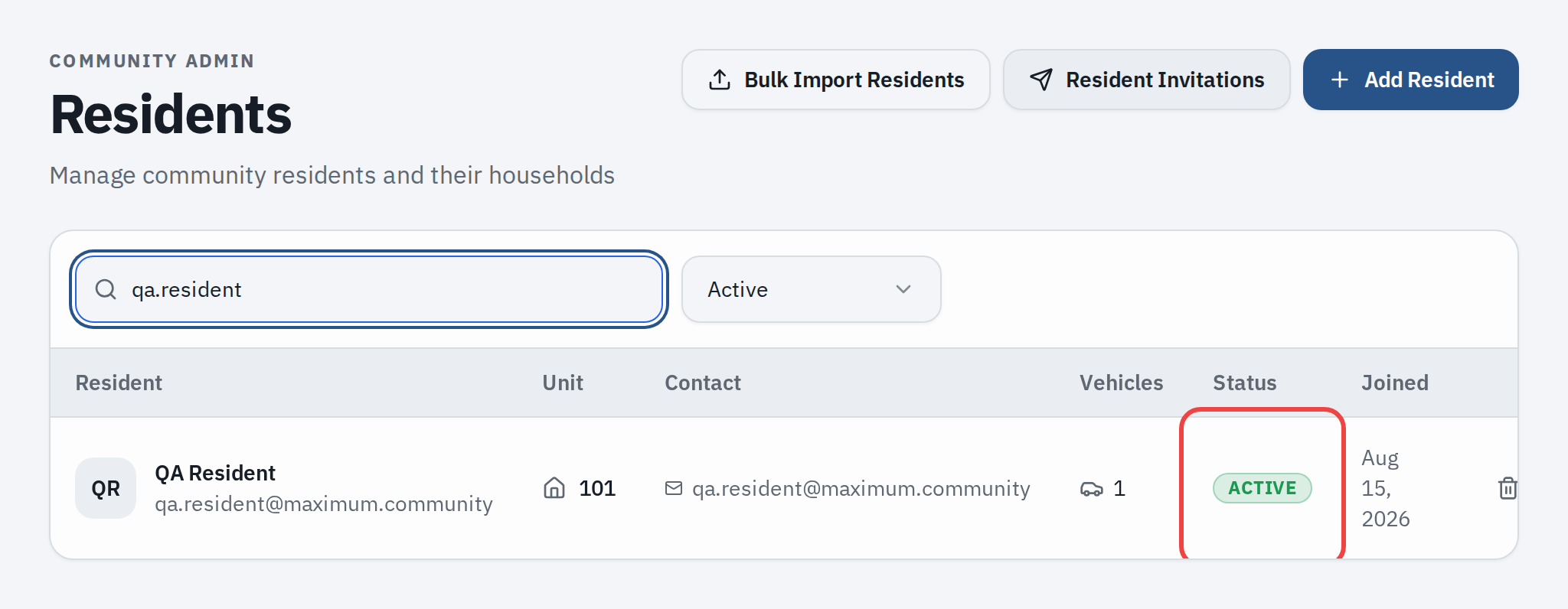
2. Check their account status
The status badge is on the Residents list, not on the Edit Resident page.
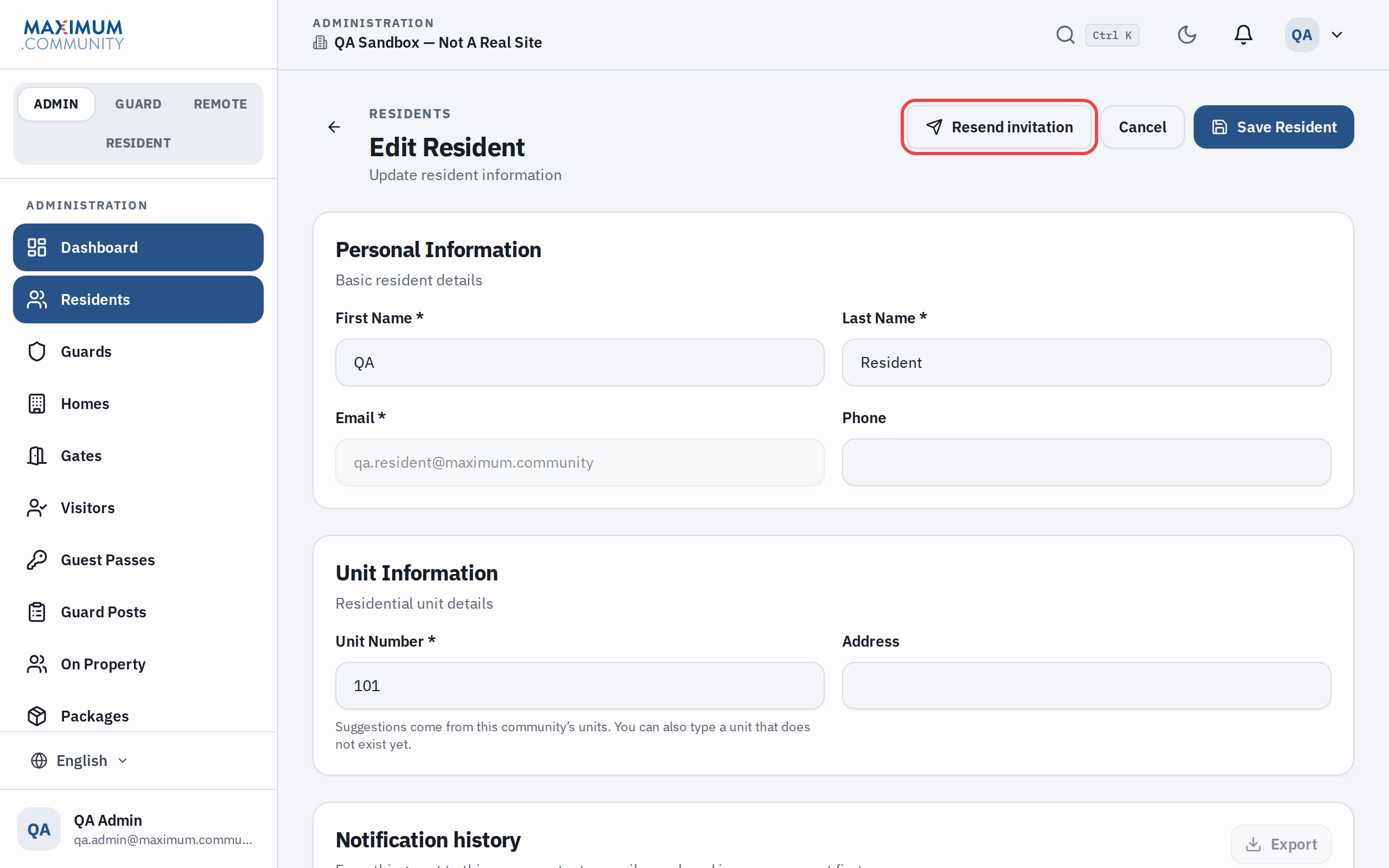
- Never finished setup — they still have only the temporary password from their welcome email. Open the resident and click Resend invitation; the email includes a new temporary password and a link to set their own.
- Active — the account is fine, so it is most likely a password issue (next step).
- Inactive — the resident was deactivated, so sign-in is blocked until the account is reactivated.
3. Reset the password
Have the resident tap Forgot password? on the sign-in screen. There is no separate reset-password action in the admin — instead, open Edit Resident and click Resend invitation (top right). It sends a fresh welcome email with a new temporary password, and their current password stops working. New and reset accounts are prompted to set a new password on first sign-in, so make sure they complete that step rather than reusing the temporary one.
4. Make sure they are in the right place
Confirm they are using the resident mobile app (not the staff web admin), signing in with the email on file, and running the latest app version. If they are opening a bookmarked page, have them use the current app.
5. Rule out a lockout or blocked email
- Too many attempts can trigger a short, temporary lockout — have them wait a few minutes and try again.
- Invite or reset email never arrives — ask them to check spam, and confirm their email provider is not blocking messages from the community. Resend after correcting the address. If email is blocked, the Resend invitation dialog also shows the temporary password so you can read it out or print it.
6. Check whether the community itself is paused
If no one in the community can sign in, the account may not be the problem — the whole community could be suspended. Confirm the community’s status before troubleshooting individual logins.
Still locked out?
If the email is correct, the account is active, and a fresh invitation still fails, escalate to your Maximum.Community administrator with the resident’s email, their account status, and the exact error message they see.