These steps and screenshots come from the iPhone (iOS) app. Android works the same way, with slightly different button placement.
Adding your vehicles links your license plates to your unit. Where your community's access system reads plates at the gate, that means the gate can recognize you as you pull up — and even where it doesn't open automatically, the guard can see the car belongs to a resident and wave you through faster. It's worth doing for every car that regularly comes through.
1. Open your vehicle list
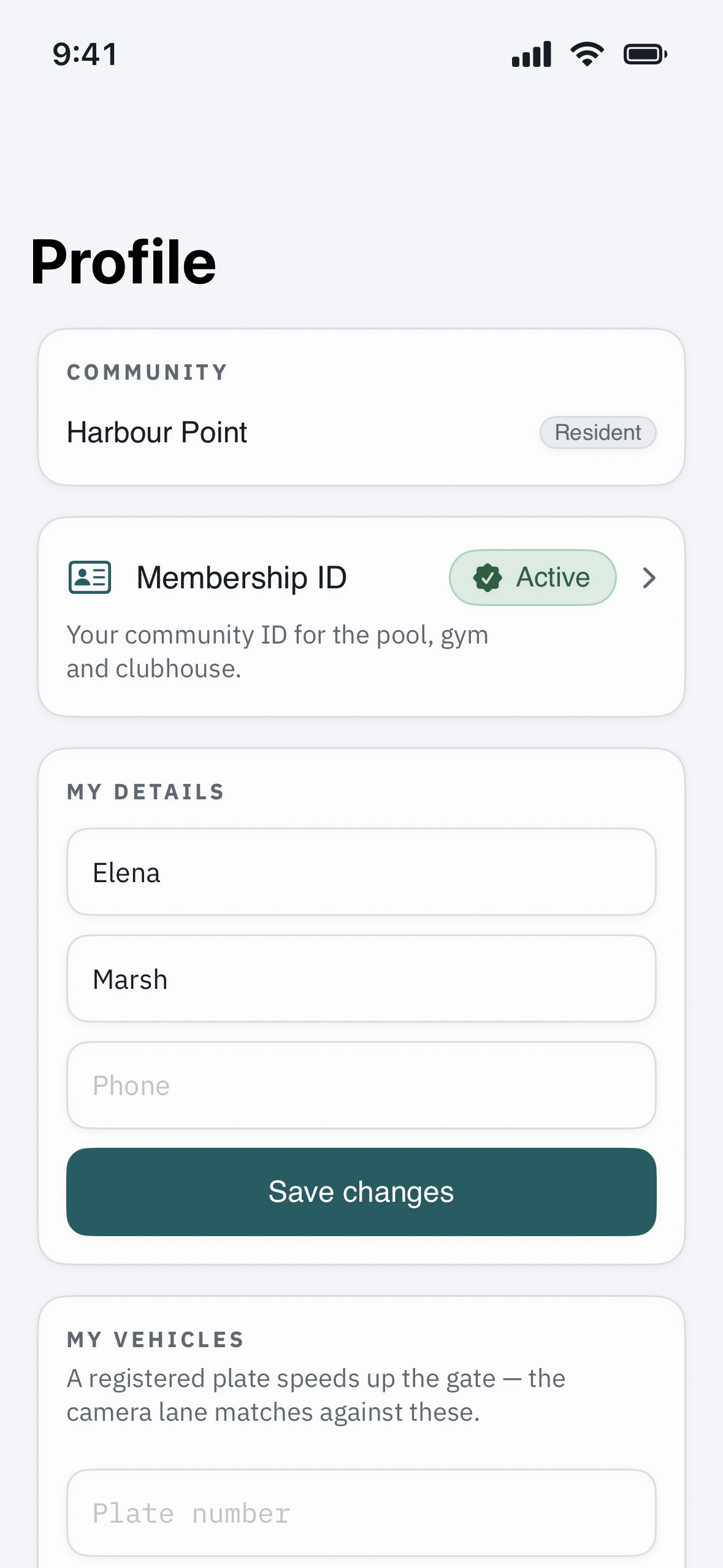
Tap your Profile (or your unit under My Home), then find Vehicles. This is the list of every car tied to your unit.
2. Add a vehicle
Tap Add Vehicle and fill in:
- License plate — type it exactly as it appears on the plate, with no extra spaces or dashes.
- State — choose the correct one. This matters more than it looks: the cameras use the state to tell your plate apart from an identical number registered in another state, so getting it right is what makes recognition reliable.
- Make, model, and color — not strictly required, but they help the guard match the car to your unit at a glance.
3. Save
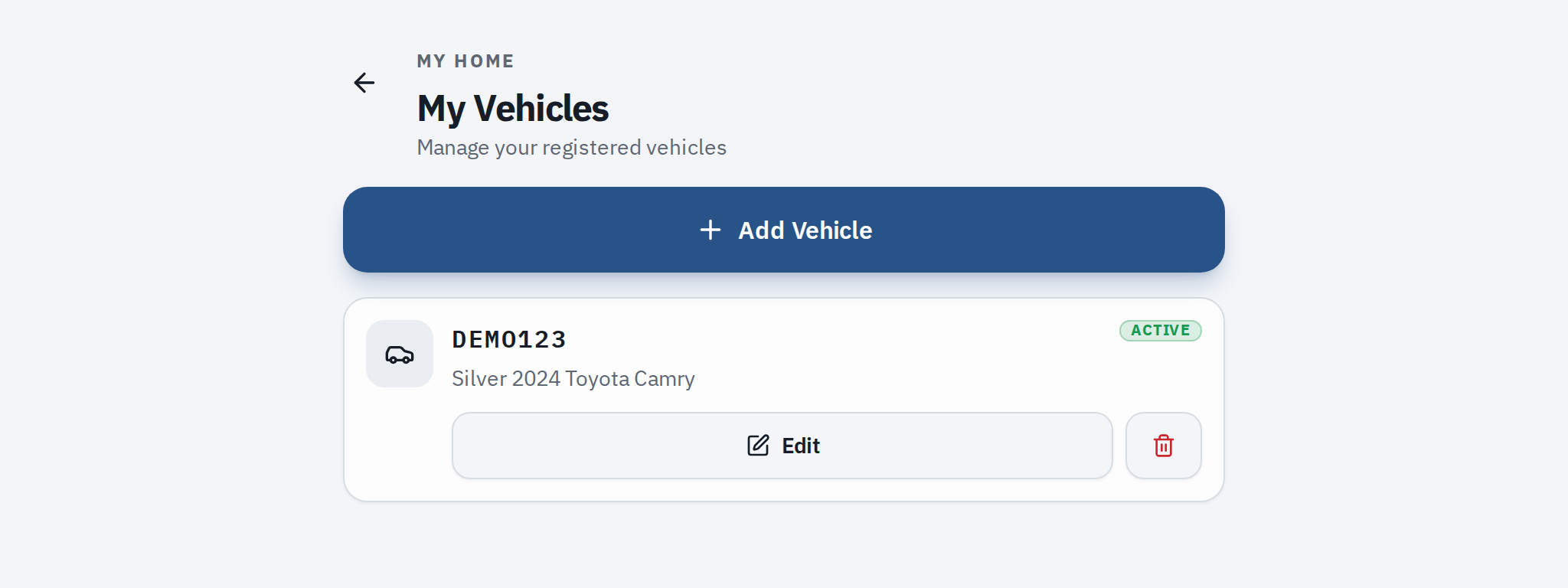
Tap Save. Your vehicle appears in the list and is linked to your unit right away. If you have more than one car, repeat for each — there's usually no limit on how many you can add.
4. Keep the list current
An out-of-date list is worse than none, because the cameras may keep looking for a plate you no longer drive. Whenever something changes, open the vehicle and tap Edit or Remove:
- Sold or traded a car? Remove it.
- Got new plates? Edit the number (and state, if it changed).
- Borrowing a car for a while? Add it, then remove it when you give it back.
Troubleshooting
The gate doesn't open for your plate. First, confirm automatic plate opening is actually turned on at your gate — it depends on your community's cameras and rules, and not every entrance has it. Even without auto-open, a registered plate helps the guard clear you quickly. Check that the plate and state are entered exactly right; a single wrong character or the wrong state is enough to miss a match.
Your plate is new. Cameras read the physical plate, so update the number in the app the day your new plates go on. Until then, the guard can still let you in.
A guest is driving your registered car. That's fine — the plate is what's recognized, not the driver. Just remember to remove a borrowed car from your list once it's gone, so the system isn't watching for a plate that's no longer yours.
You have a vanity or specialty plate. Enter it exactly as printed, including any unusual spacing shown on the plate itself. If recognition is unreliable, let your property manager know — some plate styles are harder for cameras to read, and the guard-list fallback always works.