Your community office can issue a key that lives on your phone. Once it is set up, you open the gate right from the app — or just by walking up to the reader with your phone in your pocket. Setup takes about a minute; have your phone with you.
1. Look for “Your key is ready”
When the office issues your key, your phone gets a Your key is ready notification. Tap it and the app opens to Profile > My access, where your key is waiting with an Activate button. Do this on the phone you actually carry — that is the phone the key ends up on.
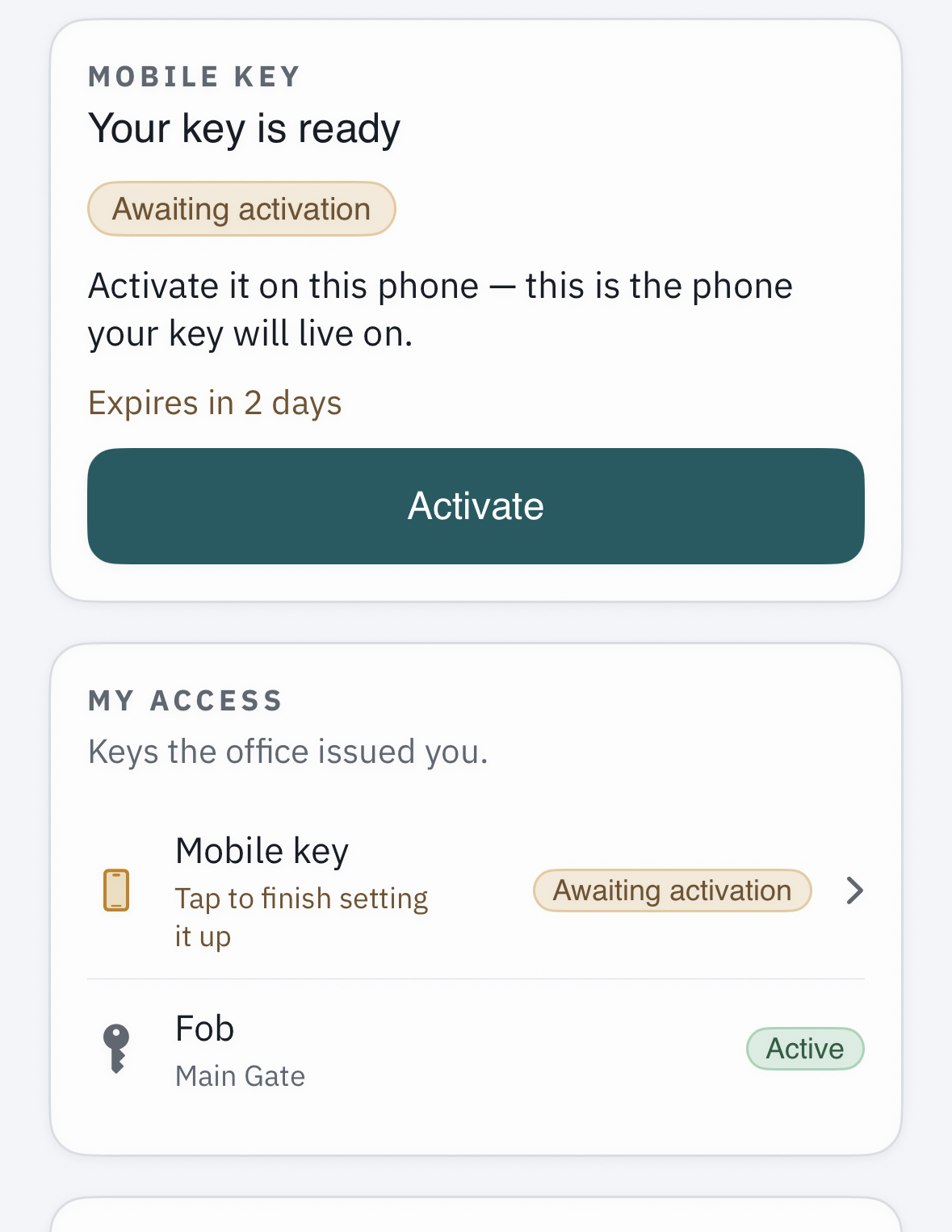
No notification? You do not need one. Open the app and go to Profile > My access — the card is there whenever a key is waiting, whether or not notifications are switched on.
2. Tap Activate
Tap Activate and the app sets the key up on this phone. It takes a few seconds; you do not have to type anything or leave the app. Your community may also email you an invitation link — tapping it opens the same screen and does the same thing, so use whichever reaches you first.
Heads-up: keys expire if they are not activated in time (usually within 72 hours). If the card says the invitation expired, ask the office to send it again.
3. Say yes to Bluetooth and Location
The moment your key activates, your phone asks for two permissions. Both are what make the key actually open a gate, so allow them:
- Bluetooth — lets your phone present the key to the reader at the gate.
- Location — set to Always, this lets the gate open as you approach, even with the app in the background or your phone in your pocket. Choose “While Using” first if asked, then “Change to Always Allow” when your phone follows up.
4. Open the gate two ways
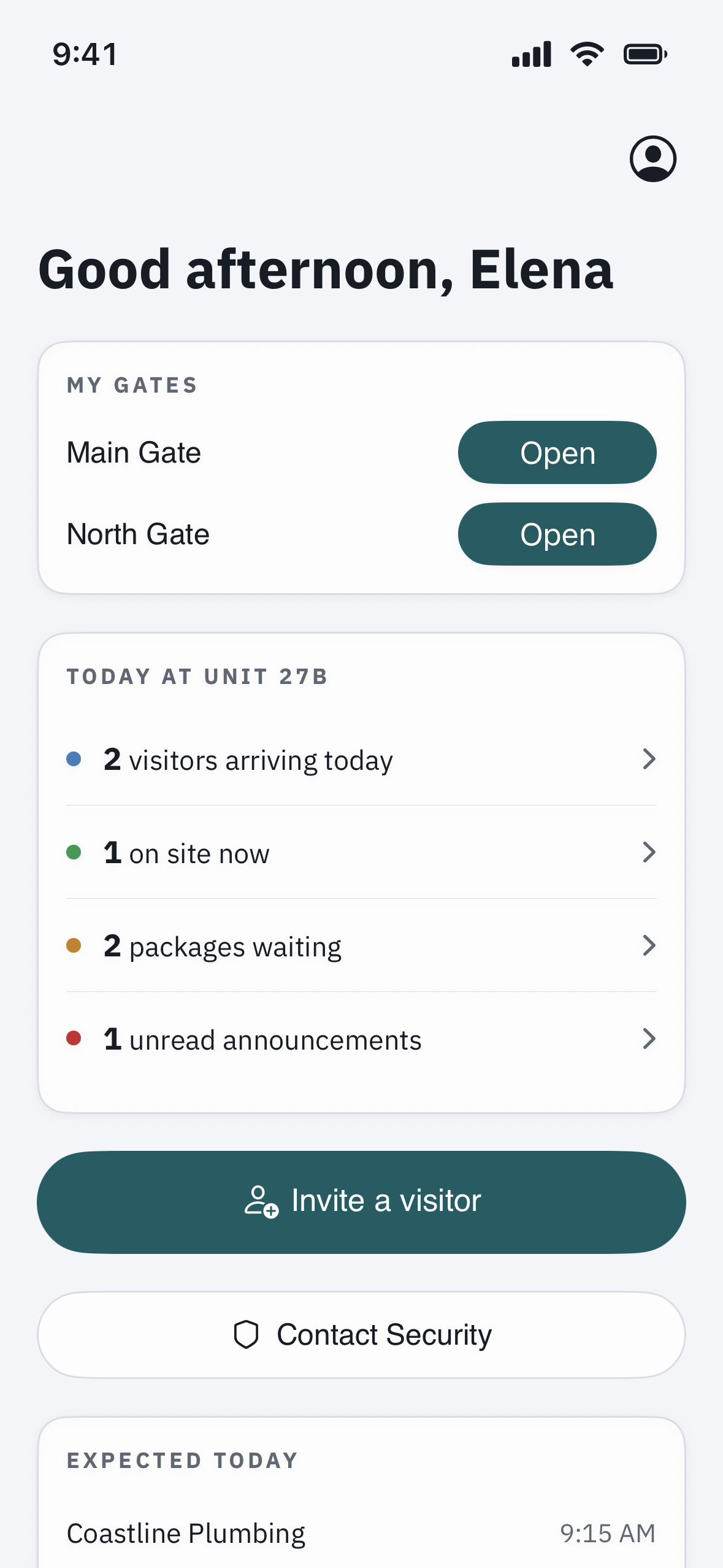
- From the app. Where your community allows remote open, your gates appear on Home under My gates. Tap Open, confirm, and the gate opens.
- Just walk up. With the key active and both permissions granted, hold your phone near the reader — or simply arrive, if Location is set to Always. You do not need to unlock your phone or open the app.
Good to know
- A key lives on the one phone it was set up on — it does not move to a new phone by itself. Got a new phone? Ask the office to reissue the key, then activate it there.
- The gate works over Bluetooth even with no cell signal, as long as you have signed in on that phone at least once before.
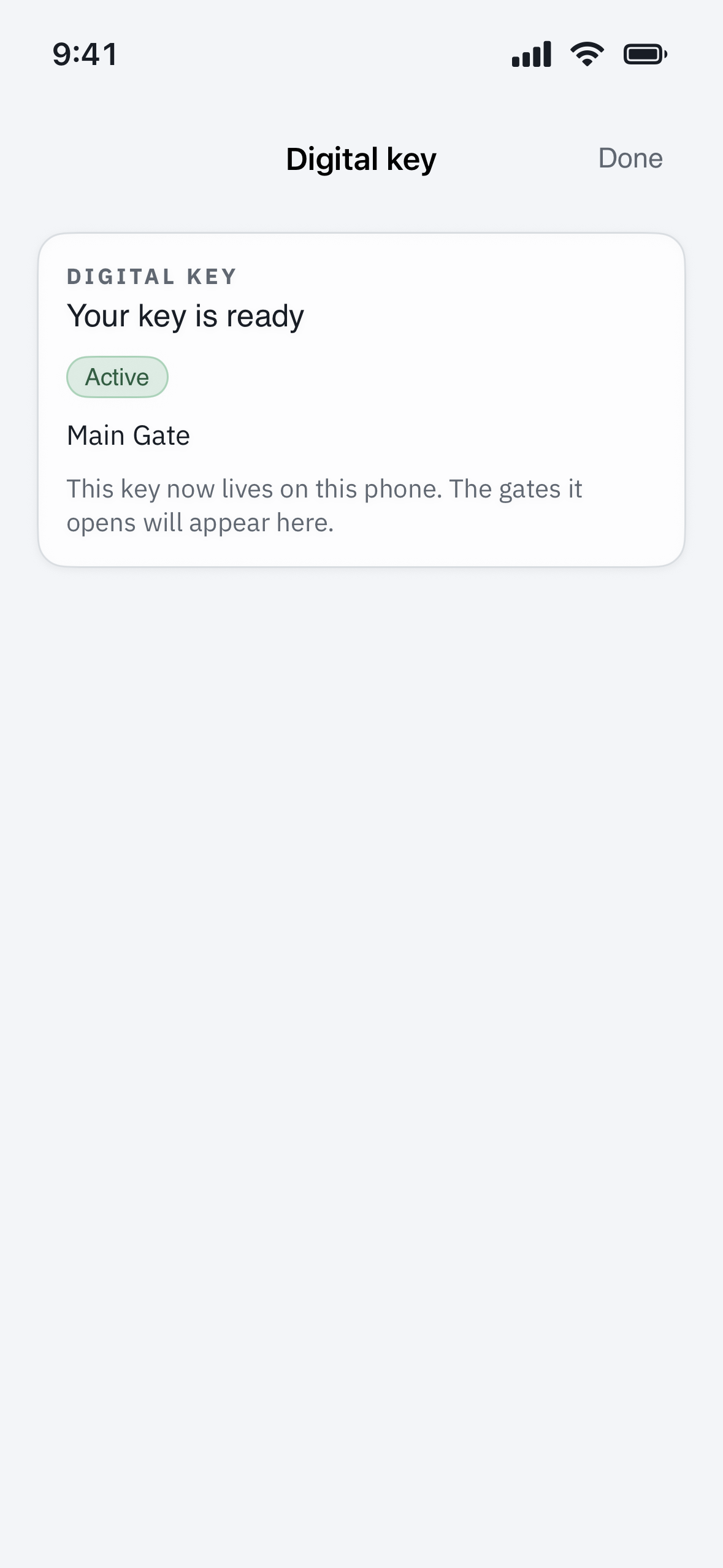
- To see your key and the gates it opens, go to Profile > My access and tap your mobile key.
Key not working?
See “My Bluetooth key won’t open the gate” in Troubleshooting & FAQs for a step-by-step fix. If your key is missing entirely or the invitation expired, your community office can check its status and reissue it.