You sent a visitor pass but your guest says the text never arrived. This is almost always fixable in under a minute. Work through these in order — the first two causes are by far the most common.
1. Check the mobile number for a typo
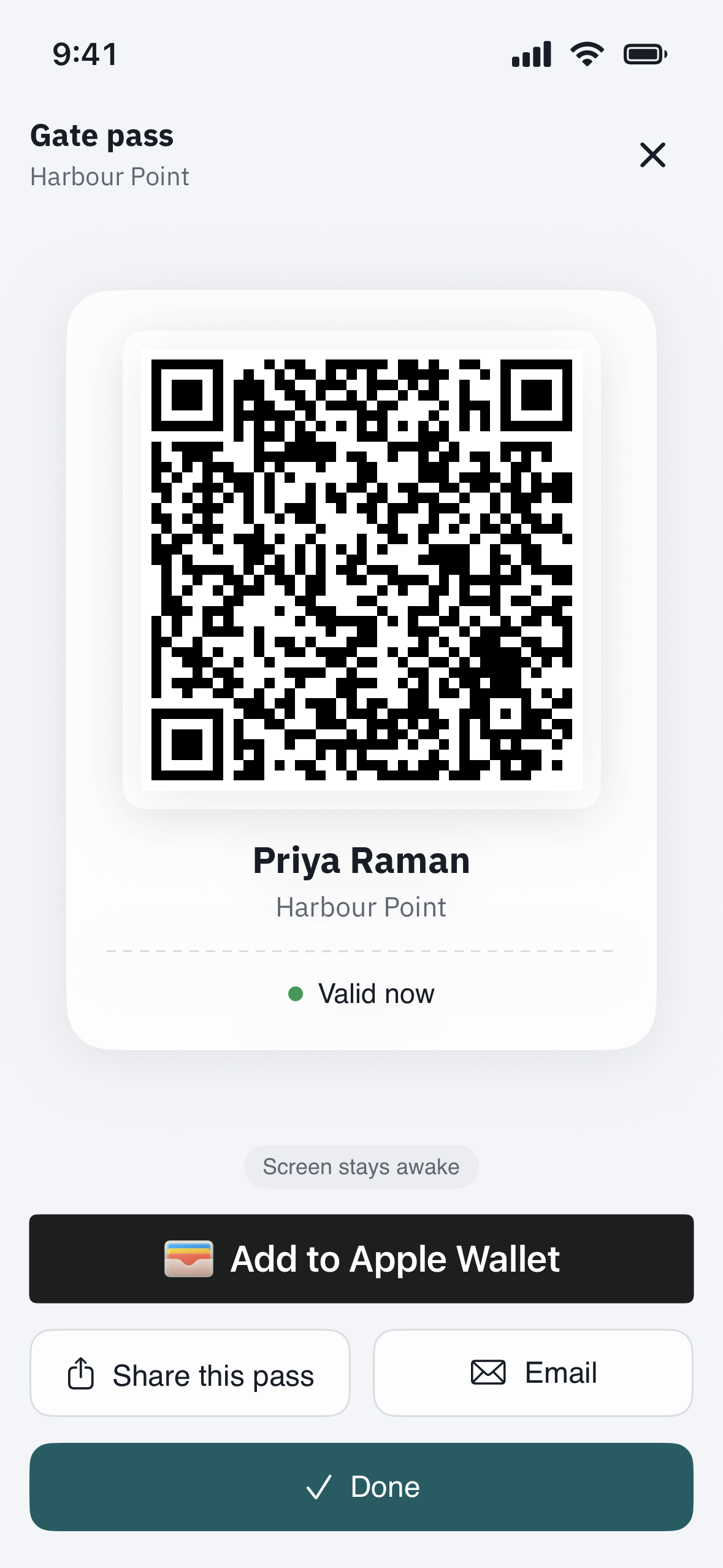
Open the visit under Visitors and read the number back carefully. A single wrong digit is the most common reason a pass does not arrive. Correct it if needed, then send the pass again (Send SMS on the web, or Share this pass / Email in the iPhone app).
2. Make sure it is a mobile number
Passes are sent by text, so they only reach mobile numbers. A landline or a desk/VoIP number cannot receive them. Ask your guest for a number that gets text messages.
3. Ask whether your guest ever texted STOP
If your guest previously replied STOP to a community text, their carrier blocks all further messages until they opt back in. Have them text START to the same community number, then resend the pass.
4. Give it a few minutes, then resend
Carriers occasionally delay a text by a few minutes. If it still has not arrived, open the pass and send it again (Send SMS on the web, or Share this pass / Email in the iPhone app). As a backup, you can read a PIN to your guest over the phone, or send a QR pass, which your guest can save to their photos.
Still not arriving?
If the mobile number is correct, it is not a landline, and your guest has opted in, the message may be blocked further upstream. Contact your property manager or open a support ticket with the guest’s number and the date you sent the pass, and we will trace it.