Welcome to the gate. The guard app is built for the booth: it opens dark to be easy on the eyes at night, and it puts one thing front and centre — Check In. Here is what you will use on shift.
Signing in
Your community or security company sets up your account and sends your sign-in details; you will set your own password the first time you sign in. If you cannot get in, ask your supervisor to check your account.
Check a guest in
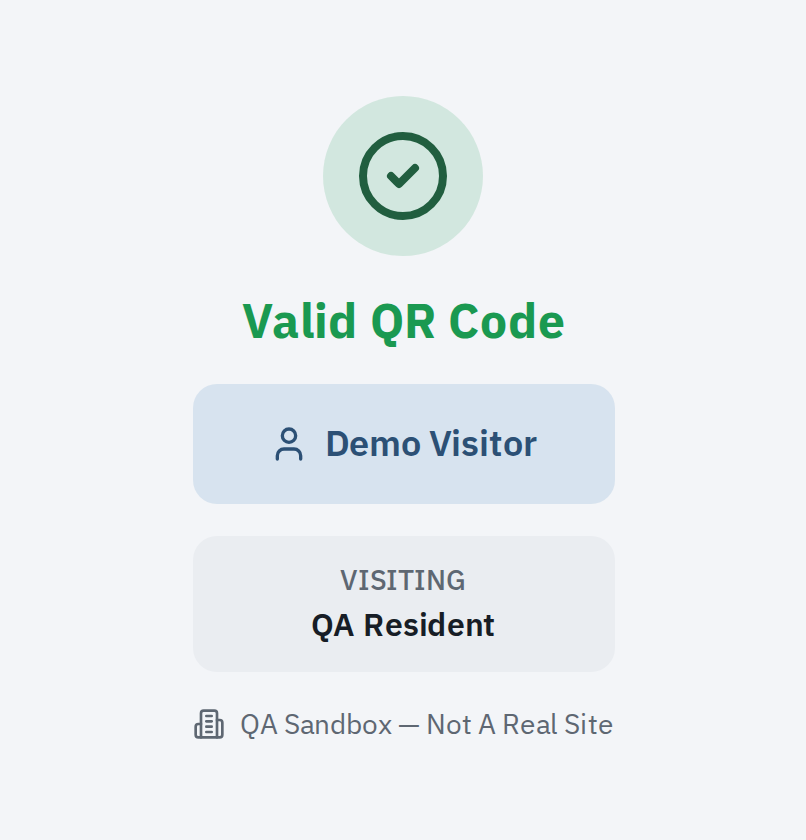
Open Check In and tap the guest’s row under Expected now — or search by name, plate, or unit. There is no scanner or code field in the console. The screen gives you a clear verdict at a glance — a green CLEAR TO ADMIT strip, or a caution or deny warning — before you tap Check In Visitor. Scanning a guest’s QR pass with a phone opens a validation page showing Valid QR Code, the guest’s name, who they are visiting, and the community; the 6-digit code on a pass is for the gate keypad or intercom, not the console.
Watch for alerts
If a guest’s name or plate matches a watchlisted name or flagged plate (BOLO), the screen shows a loud alarm above everything else. Follow your community’s standing instructions when one appears.
A guest with no pass
Use Walk-in to register a visitor who arrives without one. Where a resident has to approve the visit, that happens before the guest is let through.
Busy nights and parties
For an event with a guest list, use Party check-in to move a group through quickly.
Look someone up
Use Search and the day’s visitor list to find an expected guest or a resident.
Cameras
Where your community has gate cameras, you can view them from the app.
Read your post orders and shift notes
Standing orders for your post appear as a banner — read and acknowledge them. Shift notes carry what the last officer saw, so the night starts where the day left off.
Report an incident
Use Incident report to log what happened, with the details your community needs to follow up.
Checking guests out
Where your community tracks exits, open On Site and check the guest out as they leave.