Yes. You can set quiet hours so routine notifications do not buzz you late at night, while the alerts that truly matter still get through.
Set your quiet hours
- Sign in to the web app at app.maximum.community and open Notifications in your settings. (Quiet hours are set on the web — the iPhone app’s notification screen does not include them yet.)
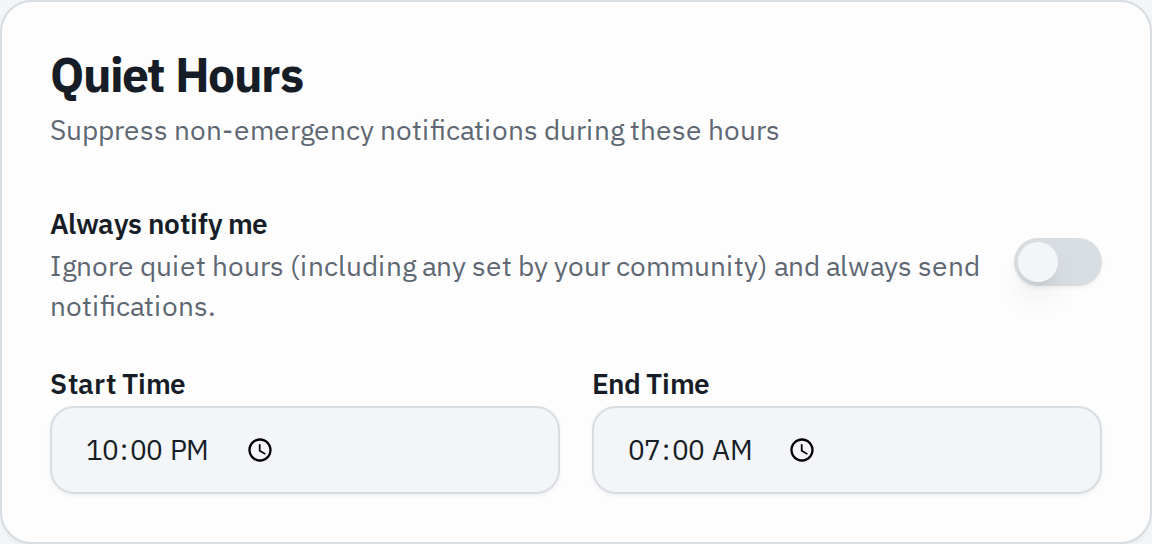
- Set a quiet-hours start and end time — for example, 10:00 pm to 7:00 am.
- Save. During that window each day, routine notifications are held back.
How it works
- Quiet hours are judged on your community’s local time, so the window lines up with your evenings.
- Emergencies always come through. Emergency broadcasts from your community ignore quiet hours by design — quiet hours only hush the routine alerts.
- This is separate from your phone’s own Do Not Disturb. You can use either, or both.
- Quiet hours only affect your notifications. They do not change when your passes work or when the gate operates.
Want to mute just one kind of alert instead?
If it is a particular type of notification you would rather turn off, see “Update your contact info & notification preferences” — you can choose which alerts you get and how they reach you.