These steps and screenshots come from the iPhone (iOS) app. Android works the same way, with slightly different button placement.
A QR code pass lets your visitor scan their way in at the gate reader — no code to remember and no waiting on the guard. It's the smoothest option for parties, deliveries, and guests who come by often, and it works even when the booth is unstaffed.
1. Start a new visitor pass
Tap Visitors, then Add (the + button). Enter your guest's name and mobile number — the QR code is texted to that number, so double-check it.
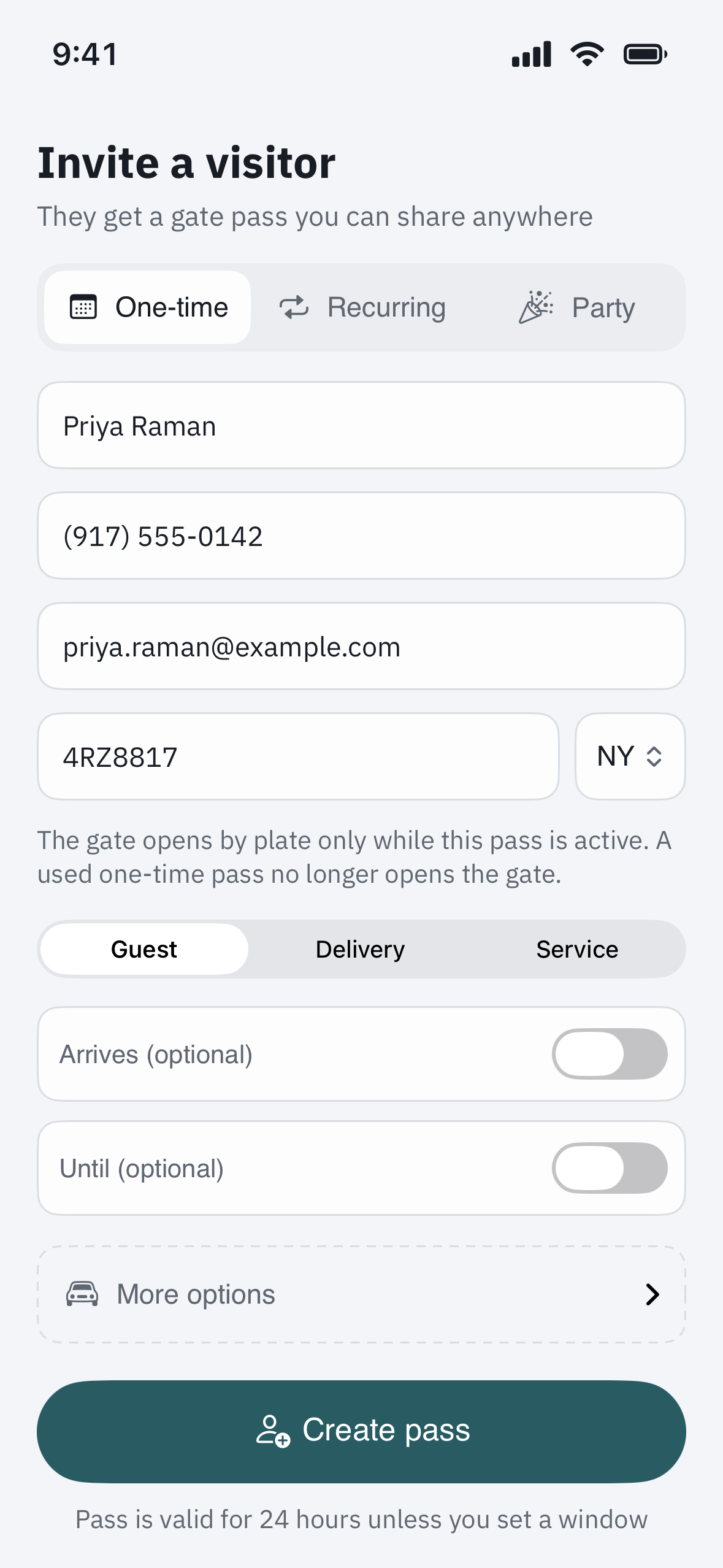
2. Choose QR code as the pass type
Under pass type, select QR code. Then set the valid dates or time window so the code only works when you want it to:
- A single day for a one-time guest or a delivery.
- A date range for a house guest, contractor, or anyone staying a while.
Setting a window matters: once it passes, the code stops working on its own, so you never have to remember to turn an old pass off.
3. Send it to your guest
Tap Send. Your visitor receives a text with the QR code and a link to open it. They can keep it in a few ways:
- Save the image to their Photos.
- Add it to their phone's Wallet, where it's easy to pull up at the gate.
- Just re-open the text when they arrive.
4. Scanning in at the gate
At the gate, your guest holds the QR code up to the reader. A couple of tips that make it work first time:
- Turn screen brightness all the way up — a dim screen is the number-one reason a code won't scan.
- Hold the phone flat and steady, a few inches from the reader, until it beeps or the gate moves.
The gate opens and the entry is logged to your unit, so you'll see that they arrived in your visit history.
5. Cancel or reissue if plans change
Each QR pass is tied to one guest and your chosen dates. If the visit is called off, open the pass and tap Cancel — the code stops working immediately, even if you already texted it. To extend a stay, edit the pass and widen the date range rather than sending a second code.
Troubleshooting
The code won't scan at the reader. Turn screen brightness to maximum, wipe the reader's lens area if it looks dusty, and hold the phone steady a few inches away. If it still won't read, your guest can fall back to the intercom to call your unit, and you can buzz them in.
Your guest didn't get the text. Resend it from the pass and re-check the mobile number. As a backup, screenshot the QR code from your own phone and send it to them through any messaging app — the image scans the same way.
The code worked yesterday but not today. Check the pass's date window. A single-day QR code only works on its date; open the pass and extend it if your guest is staying longer.
You want one code for several people. A QR pass is meant for one guest. For a party or a group arriving together, it's simpler to add them to the guard's list, or send each driver their own pass.