Where your community has given you remote access, you can open a gate straight from the app — handy for letting a guest in yourself, or for your own entry.
Open a gate you have access to
- Open the Gates screen in the app.
- Find the gate you want — only the gates you are allowed to open are shown.
- Tap Open on the gate (in the iPhone app) or swipe the open control (in the web app). The gate triggers and confirms when it has opened.
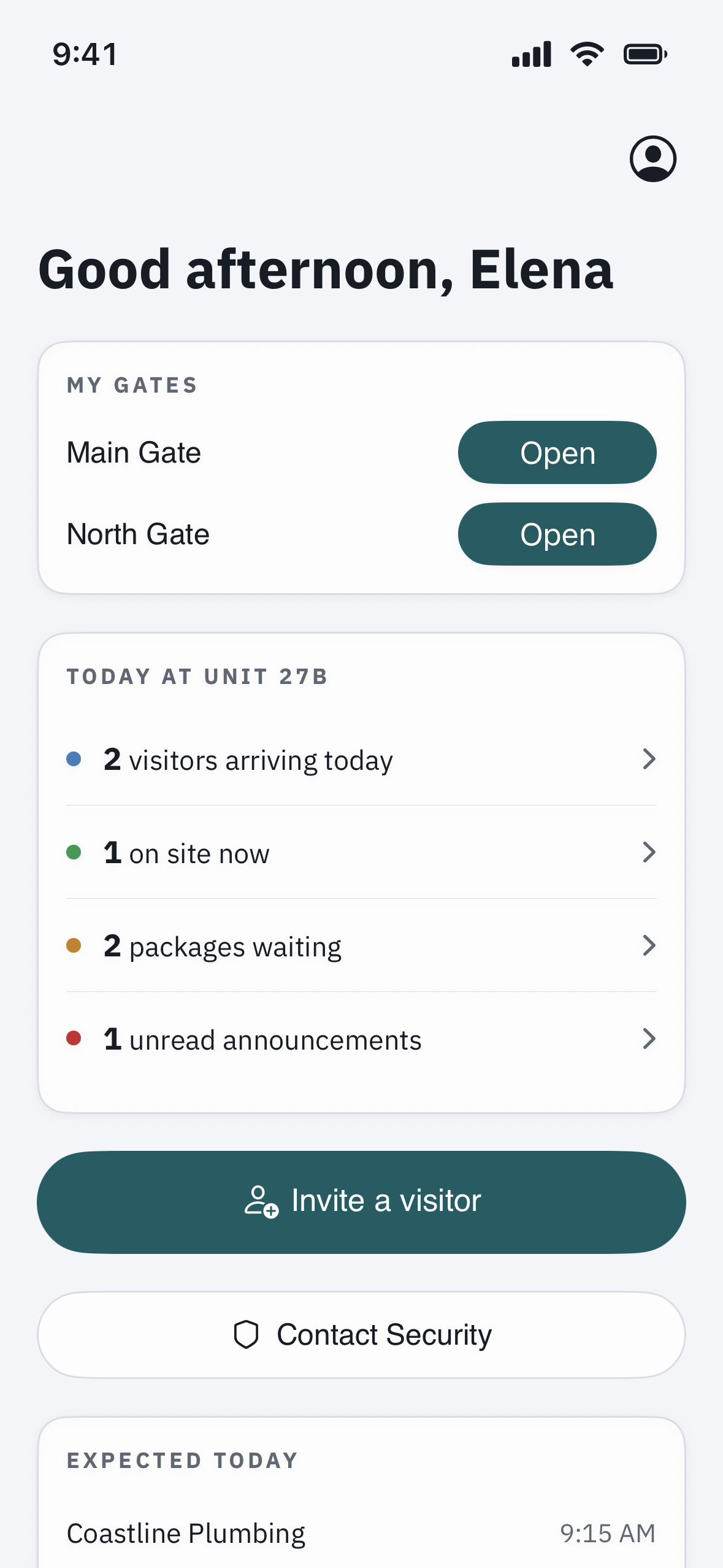
Remote open has to be switched on for that gate and granted to you, so which gates appear — if any — depends on your community. If the Gates screen is empty, your community has not enabled remote open for you.
When a visitor buzzes you on the intercom
If someone reaches you on the gate intercom, answer on your phone and speak with them to confirm who it is (see “Answer the gate intercom on your phone”). To actually let them in, use one of these:
- Open the gate yourself from the Gates screen above, if your community has given you remote open.
- The guard at the booth can let your visitor in.
- The pass you sent — your guest scans their QR or types their entry code at the gate.
Good to know
- The open button locks for a few seconds after you use it, so a double tap can never cycle the gate twice.
- Opening a gate is logged, the same as any other entry.