When your community sets up your account, the system emails you a welcome message with a temporary password and a link to sign in. At your first sign-in you are asked to choose your own password. If that email never arrived, here is how to get in.
1. Check spam and search your inbox
Welcome emails sometimes land in spam or junk. Search your mail for your community’s name or the word “welcome”, and check any “Promotions” or “Other” tabs.
2. Confirm the office has your correct email
A typo or an old address is the most common reason the email never comes — and because your email is also how you sign in, a wrong one blocks both. Give the office your correct email and ask them to resend.
3. Ask the office to resend the invitation
Your community can resend your welcome email at any time. A resend creates a new temporary password, so always use the most recent email — any earlier temporary password stops working once a new one is sent.
4. If your email is correct, set your own password instead
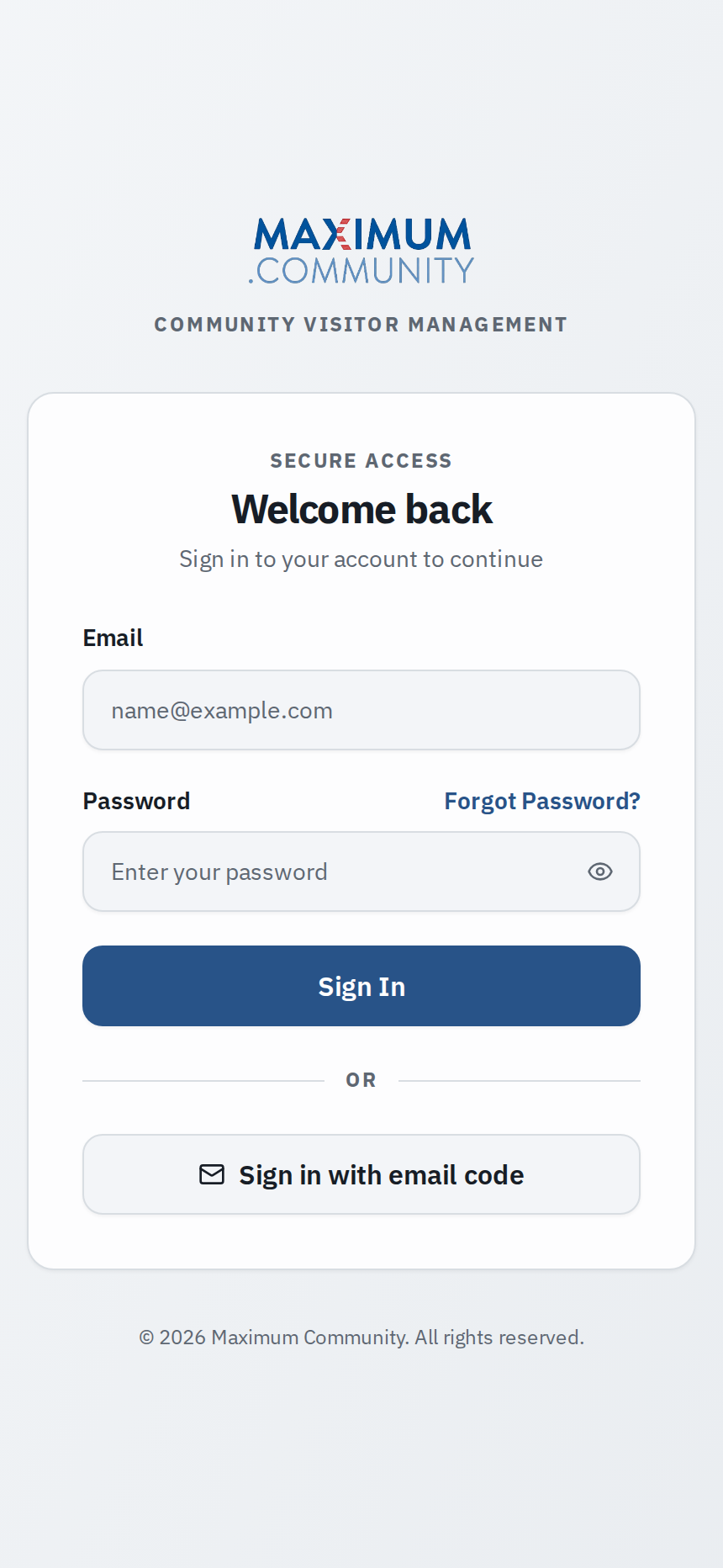
You do not have to wait for the temporary password. On the sign-in screen, tap Forgot password?, enter the email your community has on file, and follow the link it sends to choose your own password. That reset link is good for about an hour, so use it promptly. (This only works once your account exists and your email on file is correct — if it is not, go back to step 2.)
At first sign-in
However you get in, you will be asked to set a new password on the first sign-in. Choose your own and keep it — do not keep using the temporary one.
Still nothing?
If your email is right, you checked spam, and a resend still does not arrive, contact your property manager. Your email provider may be blocking messages from the community, and the office can confirm the address on file and try again.