If you saw a message like “Too many failed login attempts. Please try again later,” your sign-in has been paused for a short time. This is an automatic security measure after several wrong passwords in a row — not a permanent lock on your account.
It clears on its own
The pause lifts by itself after a short wait — usually within about half an hour. If the message names a time to try again, wait until then. You do not need anyone to unlock it.
The fastest way back in
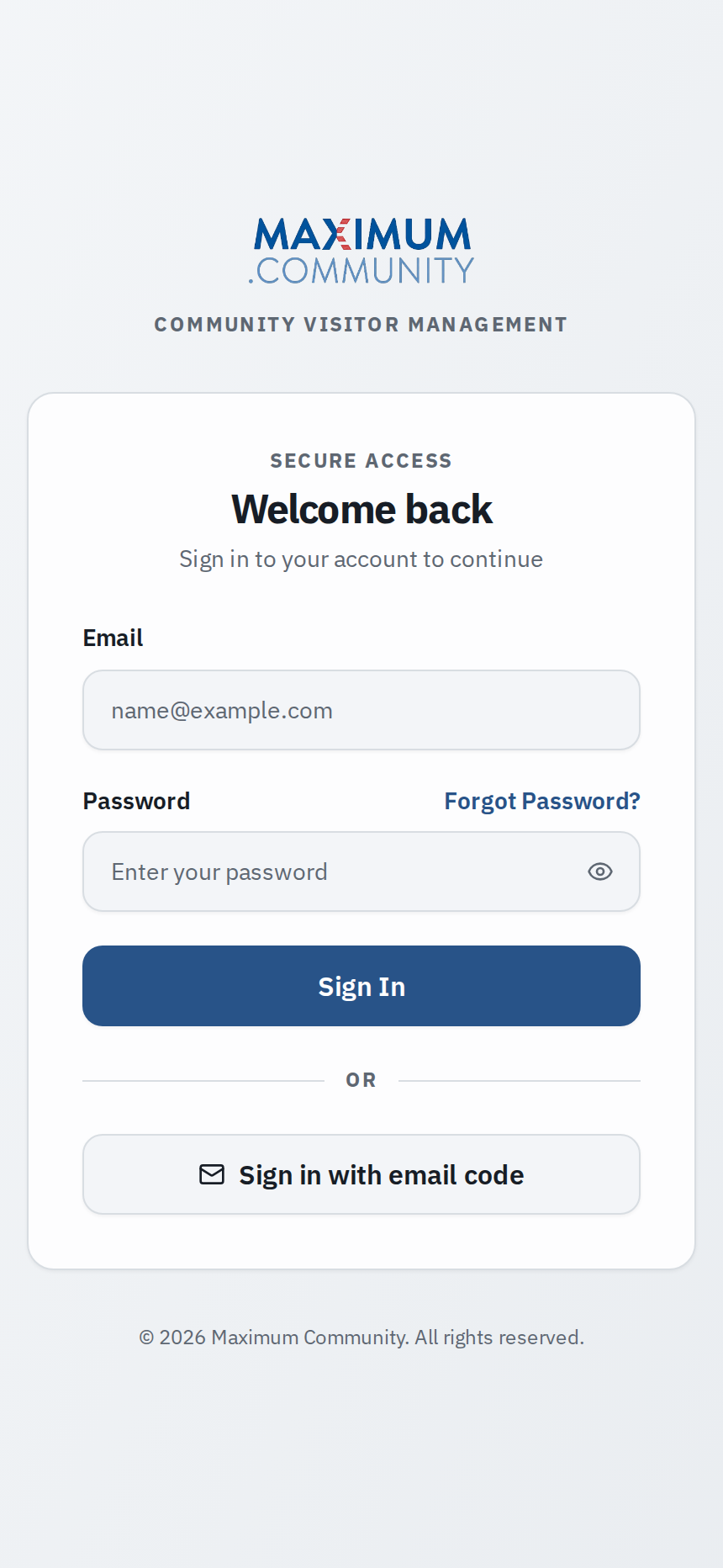
- Stop guessing and reset instead. A lockout almost always means the password was wrong. Rather than keep trying, use Forgot password? to set a new one — see “How do I change or reset my password?” A successful sign-in also clears the failed-attempt count.
- Wait a few minutes, then try once. If you are sure of your password, give it a short wait and try a single time rather than repeatedly, which only extends the pause.
Good to know
The pause is tied to your internet connection, so everyone sharing one network — a clubhouse or office Wi‑Fi, for example — can be paused together for a while. If you are in a hurry, trying from your own mobile data can help.
Still can't get in after waiting?
If you have waited and reset your password and still cannot sign in, the cause is probably something else: your account or email may need checking, or your community’s service may be paused — see “Why did my access suddenly stop working?” Contact your property manager, who can check your account and, if needed, have the block lifted.