These steps come from the iPhone (iOS) experience. Android works the same way, with slightly different button placement.
You can start using Maximum.Community in minutes, and turning on notifications is what makes sure a guest at the gate, an intercom call, or an announcement actually reaches you. Here is how to set both up.
1. Open it in your phone’s browser
You do not have to wait for anything to install. Open your community’s Maximum.Community address in your phone’s browser and sign in with the email your community has on file. From there you can invite guests, send passes, and manage your account right away. (For more on what works where, see “Is Maximum.Community available on Android, and does it cost me anything?”)
2. Add it to your Home Screen
Adding it to your Home Screen gives you a tap-to-open icon, just like an app — and on iPhone it is also what lets notifications work.
- iPhone: tap the Share button, then Add to Home Screen. Open Maximum.Community from that new icon from now on.
- Android: tap the browser menu, then Install app or Add to Home screen.
Native iOS and Android apps are in testing and add extras like a one-tap pass; you do not need to wait for them to use everything here.
3. Say yes when it asks to send notifications
The first time, Maximum.Community asks to send you notifications — tap Allow. This is what lets your phone alert you to a visitor arriving, the gate intercom ringing, or a community announcement. On iPhone, open Maximum.Community from the Home Screen icon you added in step 2, then allow notifications when prompted.
4. Choose what you are notified about
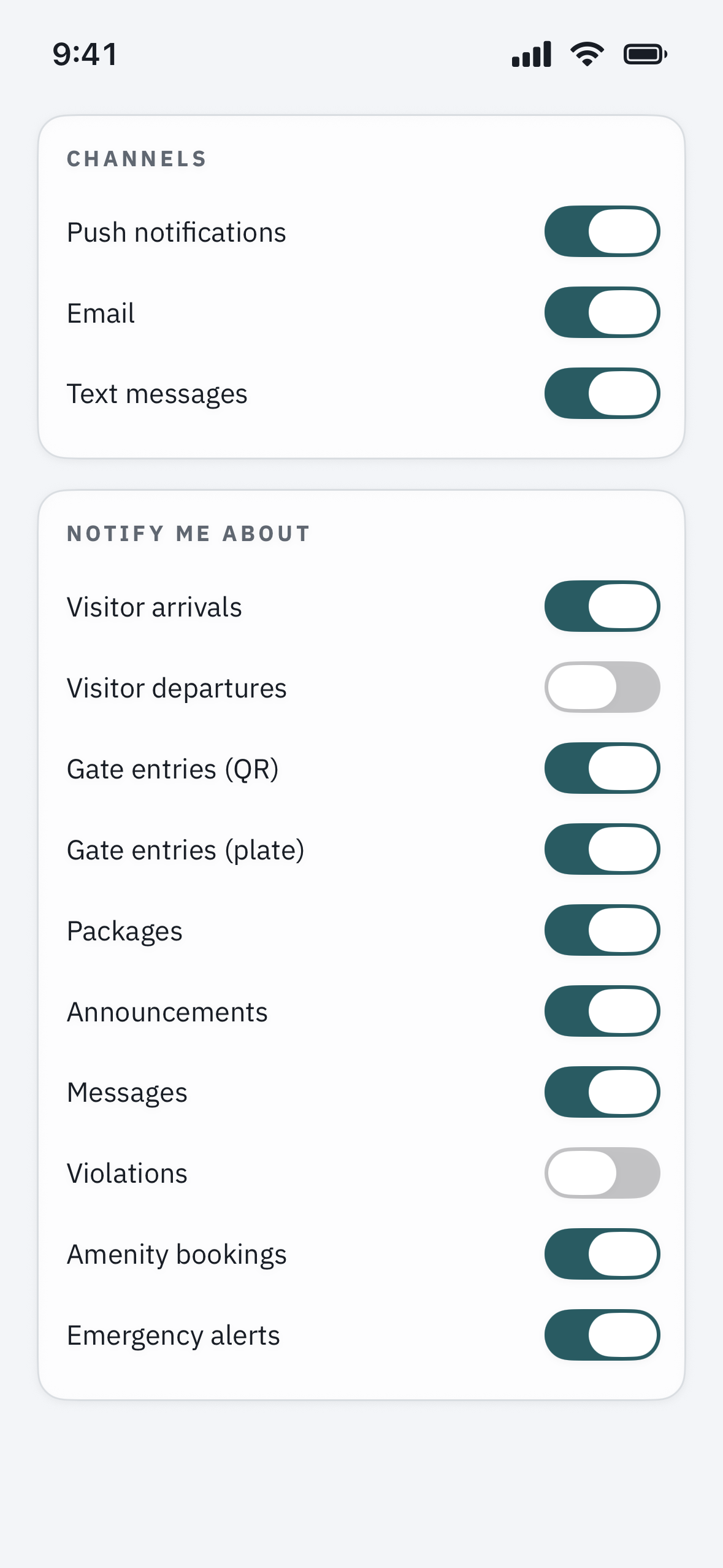
Open Profile, then Settings > Notifications. You can control:
- Channels — turn on Push, Email, and Text (SMS) where your community offers it.
- Notify me about — the kinds of alerts you want, such as visitor arrivals, the gate intercom, packages, and announcements.
We recommend leaving the gate intercom and any life-safety or lockdown alerts switched on, so you are never missed at the gate or in an emergency. To fine-tune the rest, see “Update your contact info & notification preferences.”
Not getting alerts?
If notifications still are not coming through, work through “I’m not getting notifications” — it is almost always one setting in the chain, and that guide fixes them in order.