These steps and screenshots come from the iPhone (iOS) app. Android works the same way, with slightly different button placement.
A visitor pass clears your guest through the gate before they even arrive. You fill in who's coming and when, the app texts them a pass and directions, and their name lands on the guard's list for that day. The whole thing takes under a minute, and you can do it from anywhere — you don't have to be home.
1. Open the Visitors tab
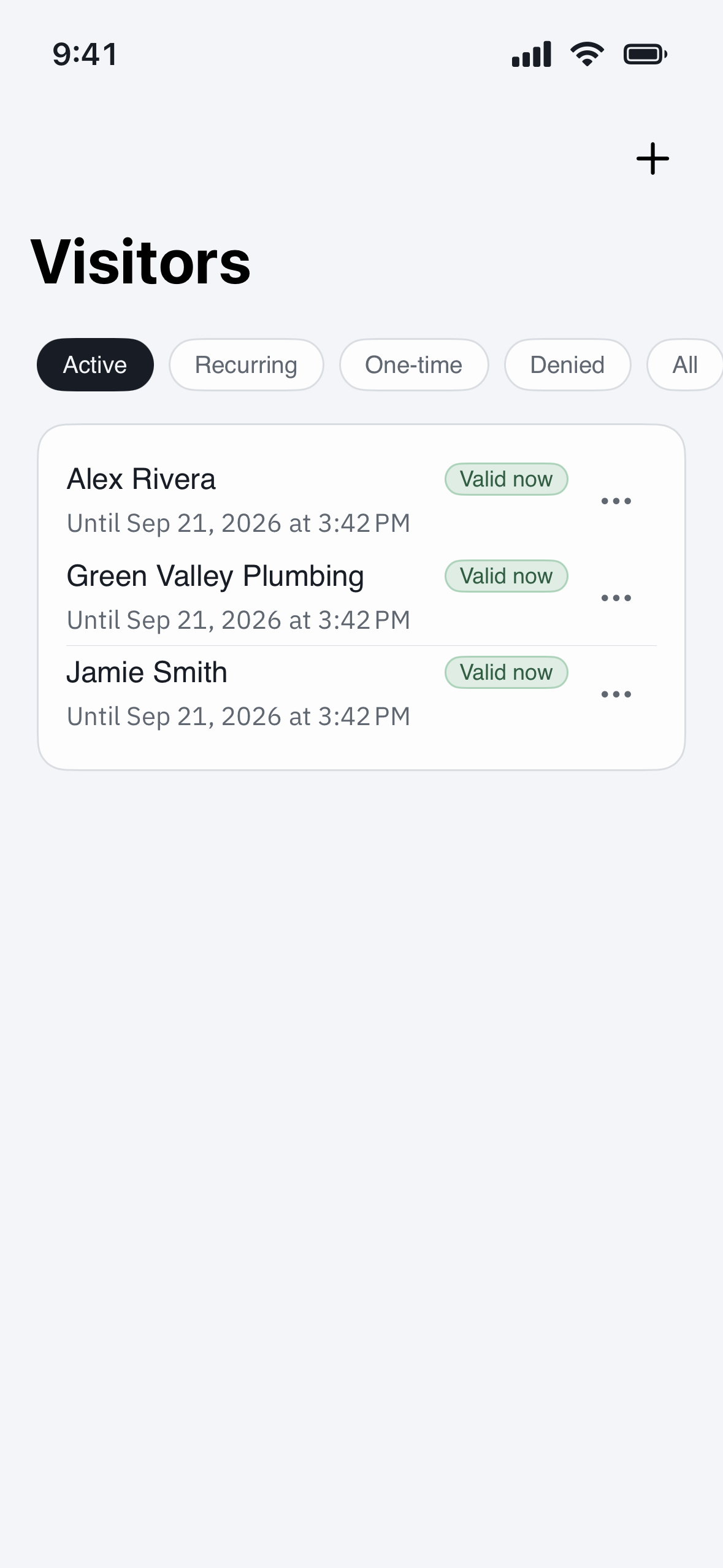
From the home screen, tap Visitors. This is where every pass you send lives, split into Upcoming and History. Tap Add (the + button, usually top-right) to start a new invite.
2. Enter your guest's details
Fill in who's coming:
- Name — this is what the guard sees on their list, so use the name your guest will give at the gate.
- Mobile number — the pass is texted here, so double-check every digit. A single wrong number is the most common reason a guest never gets their pass.
- When they're coming — pick a single day for a one-off guest, or a date range for a house-sitter, dog-walker, or contractor who'll come and go over several days.
Some communities also let you add a note for the guard (for example, "dropping off at the side door") — fill it in if you see the field.
3. Choose how your guest gets in
Pick the pass type that fits your guest:
- QR code — your guest scans their way in at the gate reader. Best for guests with a smartphone, and for anyone arriving when the booth may be unstaffed.
- PIN — a short code your guest types on the keypad. Handy for a guest who'd rather not fumble with a screen, or one you want to give the code to over the phone.
- On the guard's list — no code at all; the guard simply checks their name and waves them through.
If you're not sure, leave the default. You can always send a different pass later.
4. Send the pass
Tap Send. Your guest gets a text with their pass and directions to your gate, and the visit appears in your Upcoming list. That's it — you're done.
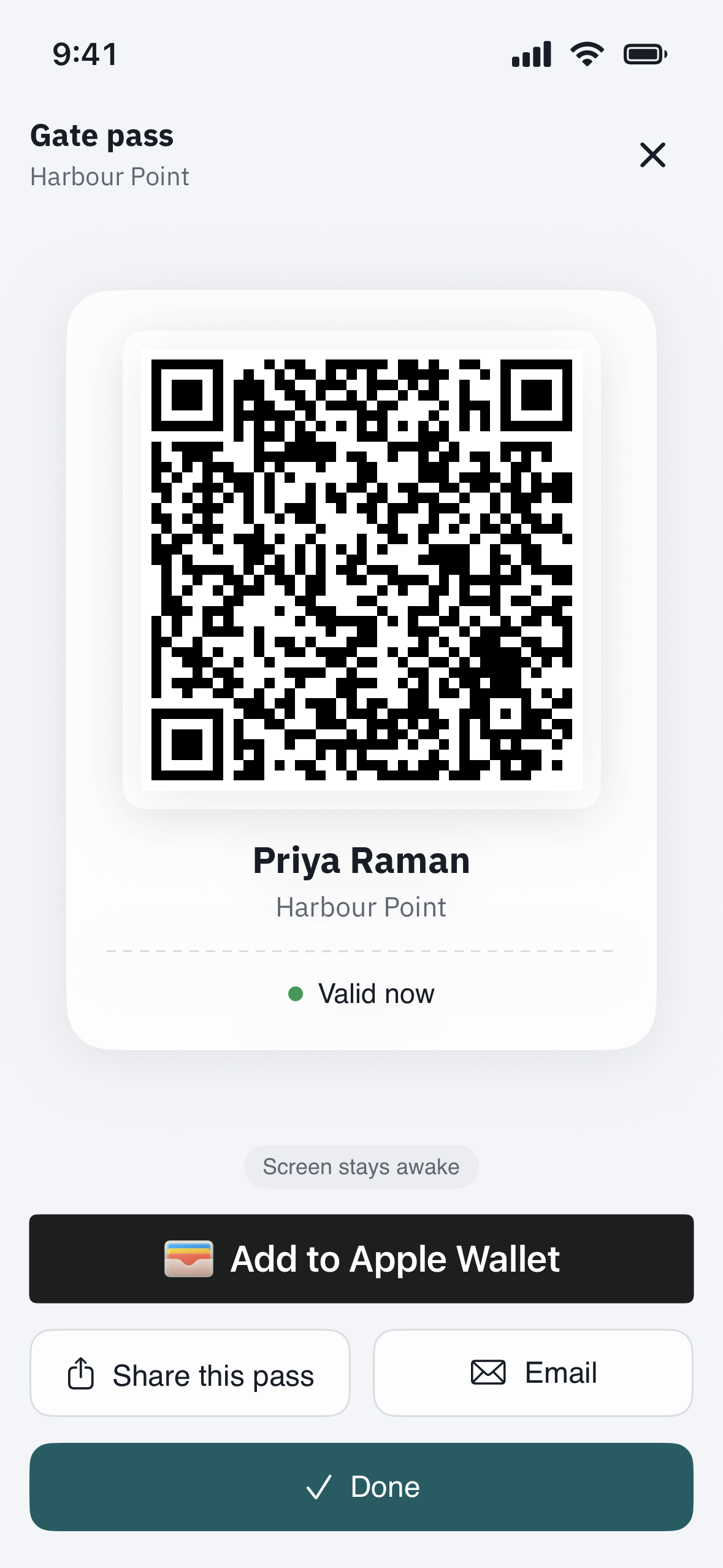
If your guest is standing next to you, or you'd rather not rely on a text, open the pass on your own phone and read them the PIN or show them the QR code directly.
5. Change or cancel before they arrive
Plans change. Open the visit from your Upcoming list to:
- Send the pass again if your guest says it never showed up — Send SMS on the web, or Share this pass / Email in the iPhone app.
- Edit the date, time, or spelling of a name (in the app, via the ⋯ menu on the Visitors list).
- Cancel the pass, which stops the code from working right away.
Troubleshooting
Your guest says the text never arrived. Open the pass and send it again (Send SMS on the web, or Share this pass / Email in the iPhone app), then re-check the mobile number for a typo. Carriers occasionally delay a text by a few minutes, so give it a moment before resending twice. If it still doesn't land, read them the PIN or show the QR code from your own phone instead.
Your guest is coming a day earlier or later than you set. Edit the visit and change the date rather than sending a brand-new pass — that keeps one clean entry in your history instead of two.
The same guest visits every week. Set a date range that covers the whole stretch instead of sending a fresh pass each time. For a truly regular visitor, a QR pass with a wide date window is the least fuss.
The guard doesn't see your guest on the list. Make sure you sent the pass from the account tied to your own unit, and that the visit date is today. A pass dated for next week won't show on today's list.