These steps and screenshots come from the iPhone (iOS) app. Android works the same way, with slightly different button placement.
Your contact details are how the community reaches you — visitor passes, intercom calls, package alerts, and announcements all follow your phone number, email, and notification settings. Keeping them current takes a minute and makes sure nothing important slips past you. Here's how to review both.
1. Update your contact details
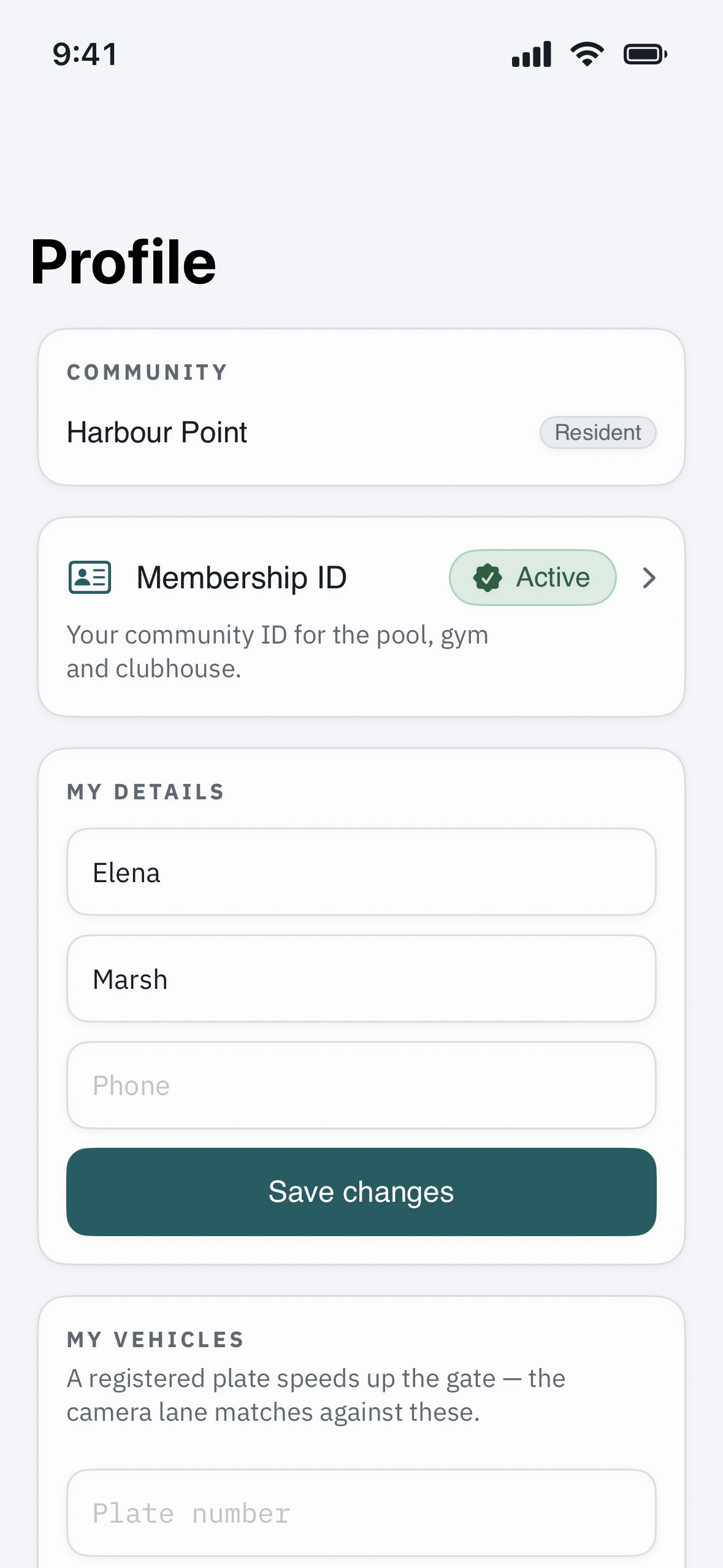
Tap Profile, then Edit. Check and update:
- Name — how you appear to staff and, in some communities, on the gate directory.
- Mobile number — used for text alerts and, at some communities, for intercom calls, so it's the most important field to keep right.
- Email — used for announcements, summaries, and password resets.
Tap Save when you're done.
2. Choose how you're notified
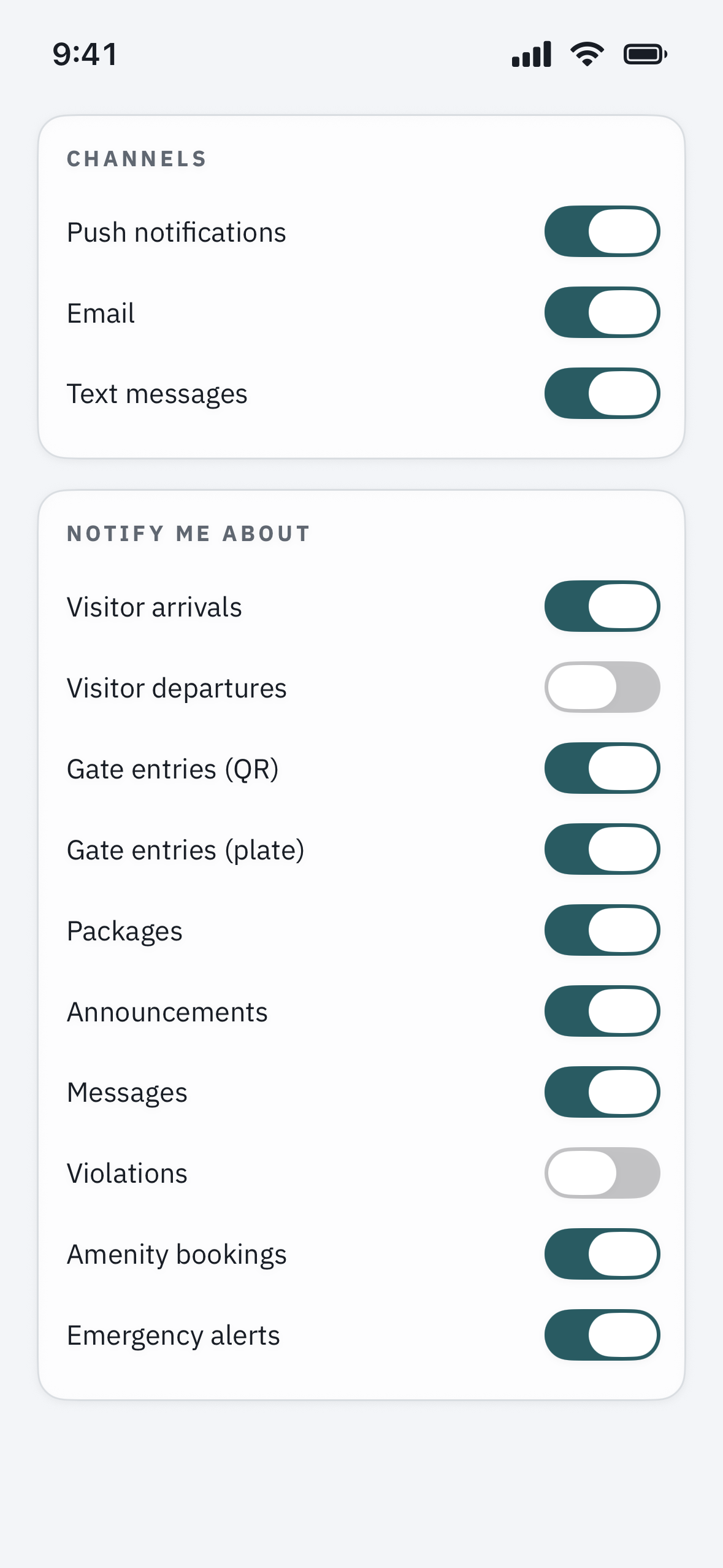
Go to Settings > Notifications. Here you decide how each kind of alert reaches you:
- Push — instant alerts on your phone. Best for anything time-sensitive, like intercom calls and visitor arrivals.
- Text (SMS) — a reliable backup that reaches you even when the app isn't open.
- Email — best for summaries and community announcements you want a record of.
3. Turn categories on or off
Toggle the kinds of alerts you want — visitor arrivals, package deliveries, community announcements, and so on — so you hear about what matters to you and skip what doesn't. One piece of advice: leave intercom and security alerts on, so you never miss someone standing at your gate.
4. Keep your text alerts flowing
If you ever replied STOP to a community text, your carrier switched SMS off for that number, and no setting in the app can override that. To start receiving texts again, reply START to the same number (or ask your property manager to help you opt back in). If your number changed, update it in step 1 first, so alerts don't keep going to an old phone.
Troubleshooting
You changed your number but still aren't getting texts. Confirm the new number saved correctly in your profile, and that you haven't previously opted out with STOP from that number. A quick way to test is to have someone send you a visitor pass and watch for the text.
Push alerts aren't coming through. The app's own preferences are only half the story — your phone also has to allow notifications for the app. Check your phone's Settings under the community app, and make sure a Focus or Do Not Disturb mode isn't silencing it.
You're getting too many alerts. Rather than turning everything off, switch noisy categories from push to email, and keep only the urgent ones (intercom, security, visitor arrivals) on push.
Your email address changed. Update it in step 1, then send yourself a password reset to confirm the new address receives community mail.