Someone in the community invited you, and you got a text with a link. Good news: you don't need an app, an account, or a password. You just open the link and show your pass at the gate. Here's exactly how.
1. Open the link in your text message
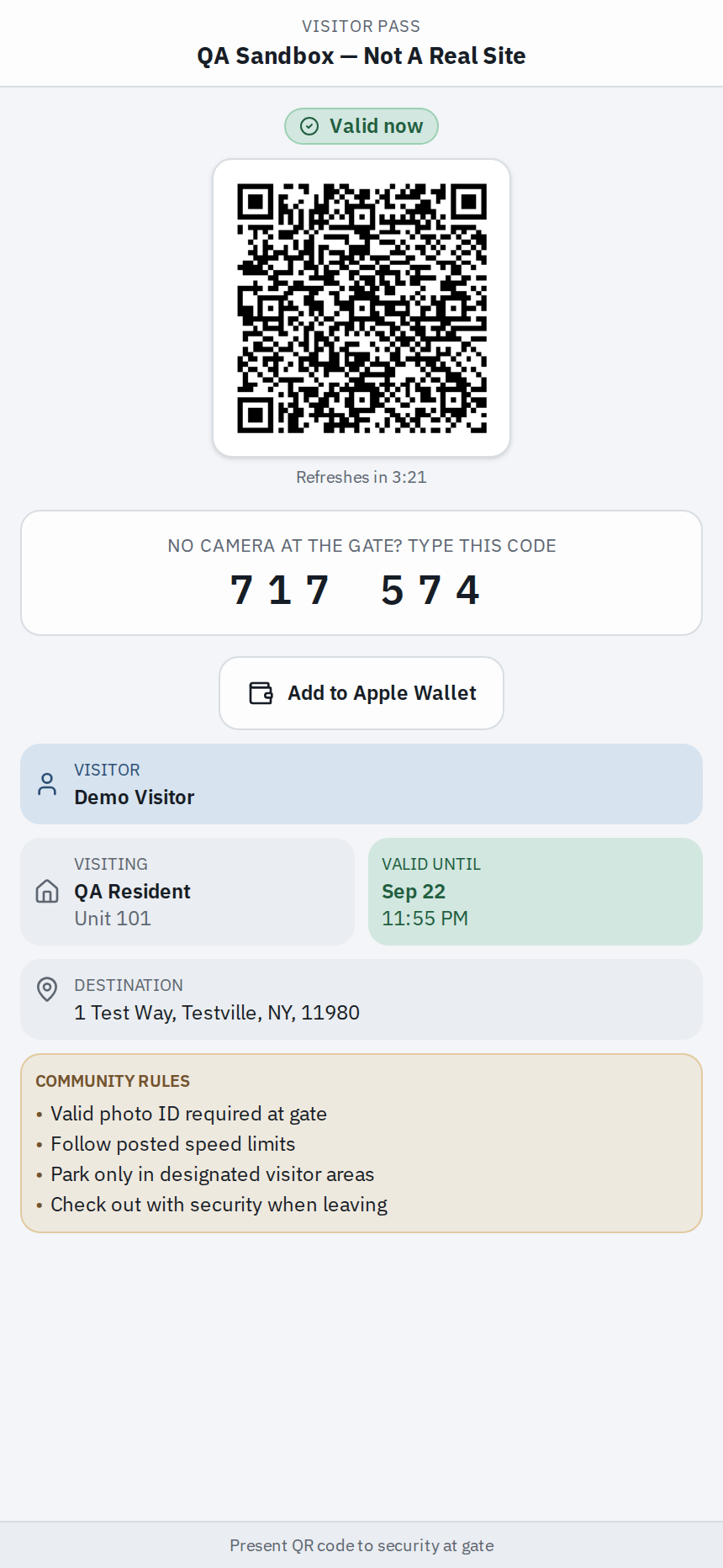
Your text says something like: "You have a visitor pass for [community] from [name]. Show this QR code at the gate," followed by a link. Tap the link. It opens a web page with your pass on it — no app to download, nothing to sign in to.
The text itself doesn't contain the code — the link is what opens your actual pass, so you do need to tap it.
2. See your pass
The page shows two things you can use to get in:
- A QR code — a square barcode. It refreshes itself every few minutes to stay valid, so keep the page open.
- A 6-digit entry code — shown under a line like "No camera at the gate? Type this code." Handy if the gate has a keypad instead of a camera.
3. At the gate, get in one of three ways
When you arrive, use whichever the gate has:
- A camera or scanner — hold your phone up with the QR code on the screen and let the camera read it. Turning your screen brightness all the way up helps it read faster.
- A keypad — type your 6-digit code and press enter. Type the digits with no spaces.
- A guard — if a person is on duty, just show them the pass on your phone.
The gate opens and you're in. Your visit is noted for the person who invited you.
4. Keep the pass page open and live
Use the live pass page from the link, not a screenshot or a saved picture. The QR code changes itself to stay secure, so an old screenshot can stop working, and a saved image may be turned away at an unattended gate. If you saved the pass to your phone's wallet and the reader won't take it, don't worry — flag down the guard, who can check you in.
One more thing: you don't scan your own QR code with your own phone. Your phone shows the code; the gate's camera reads it.
Good to know
- Passes usually work for a limited time — often about a day — and some are set to let you in just once. If yours stops working, the person who invited you can send a new one.
- The person who invited you may have set specific days or hours. If it's not your time yet, the gate will say the pass isn't valid right now.
- If anything doesn't work at the keypad or camera, see "Your QR code or PIN didn't work — what to do."
The pass isn't working?
The quickest fix is almost always to reopen the link from your text so the page refreshes, then try again. If it still won't go through, call the person who invited you — at many gates you can call a resident right from the panel — and they can let you in. There's a whole article on this: "Your QR code or PIN didn't work at the keypad."